C#开发跨平台游戏——在游戏中显示系统默认鼠标及鼠标的基本使用
上一篇我们讲了如何设置游戏的窗口大小及全屏状态下分辨率的大小,这一篇我们来讲讲如何在游戏中使用鼠标。
细心的朋友可以发现,当我们运行HelloWorld.XNA这个游戏的时候,当鼠标移动到游戏窗口中,鼠标箭头不见了!这是怎么回事呢?
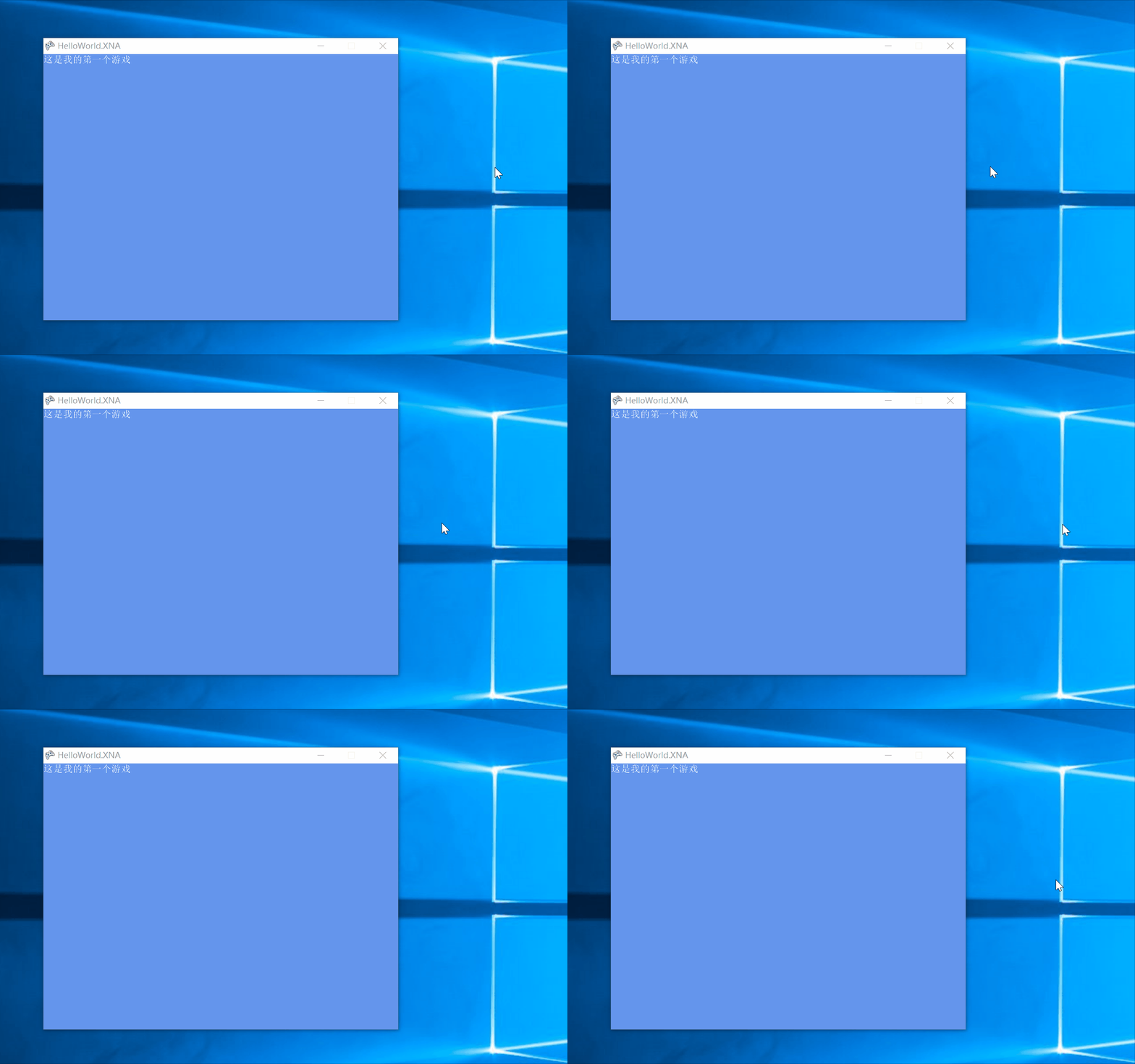
这是因为默认情况下游戏需要自定义鼠标图案,当然也可以使用默认的系统鼠标。
使用默认系统鼠标
打开Game1.cs文件,找到Game1()构造函数,将方法内的【graphics.IsFullScreen = true;】改为【graphics.IsFullScreen = false;】即窗口模式打开游戏!
接着在【graphics.IsFullScreen = false;】的下面输入
IsMouseVisible = true;//显示系统默认鼠标
也可以写成this.IsMouseVisible=true,因为IsMouseVisible是Game1实例的属性。this表示Game1实例本身。
点击【启动】
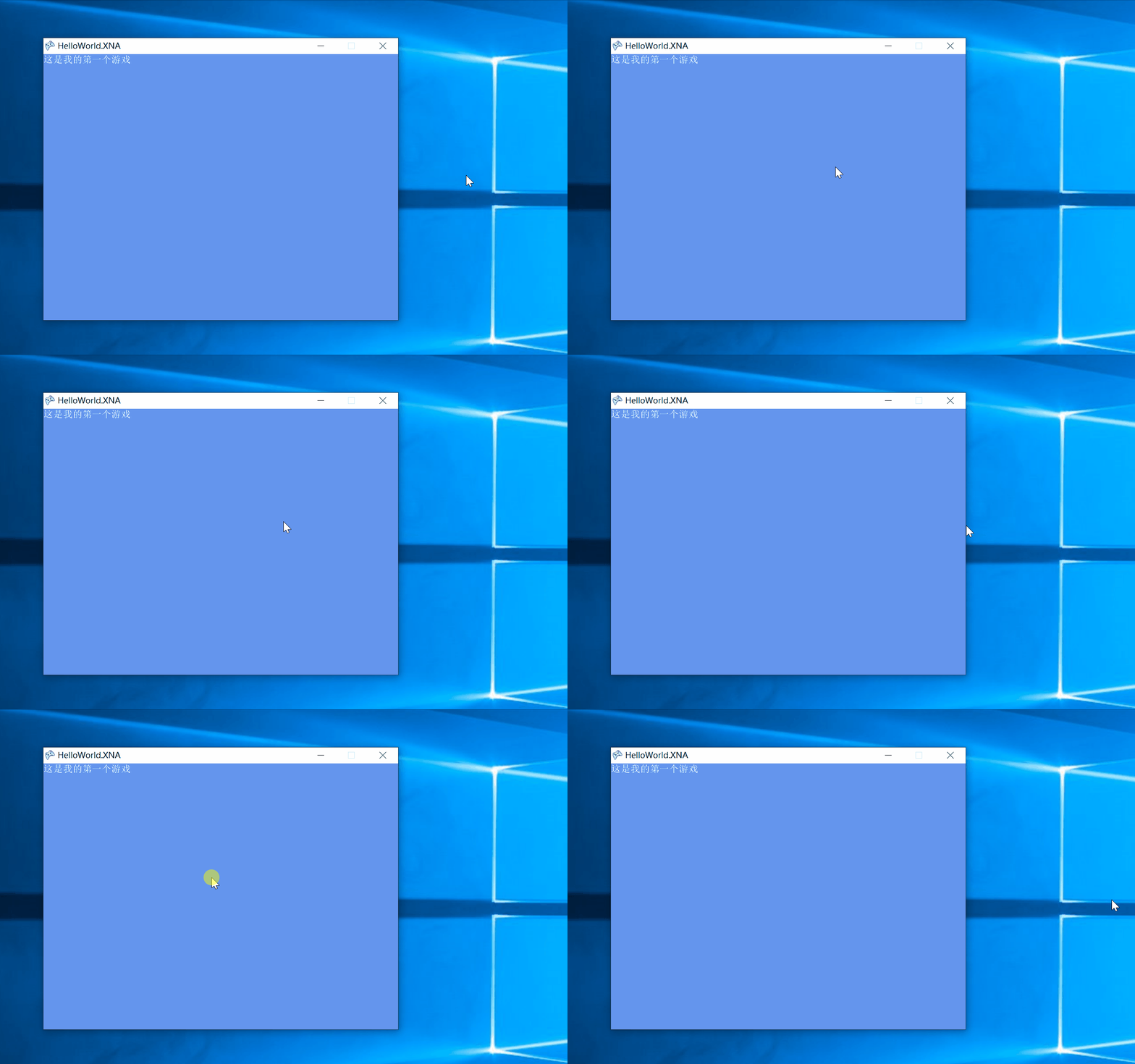
鼠标的基本使用
接下去我们要做的是点击鼠标将游戏的背景色改成红色。打开Game1.cs文件,找到【SpriteFont defaultFont;】,在下方定义一个游戏背景变量
Color backgoundColor;
然后找到【 LoadContent()】 方法,在方法体内给游戏背景初始化为蓝色
backgoundColor = Color.CornflowerBlue;
接着找到【Draw(GameTime gameTime)】方法,在方法体内将【GraphicsDevice.Clear(Color.CornflowerBlue);】改为
GraphicsDevice.Clear(backgoundColor);
找到【 Update(GameTime gameTime)】方法,在方法体内输入
MouseState mouseState = Mouse.GetState();//获取鼠标状态
            if(mouseState.LeftButton==ButtonState.Pressed)//判断是否按下了鼠标左键
            {
                backgoundColor = Color.Red;//将背景设置为红色
            }
            else
            {
                backgoundColor = Color.CornflowerBlue;//放开鼠标左键恢复成蓝色
            }
鼠标类型有三种鼠标左键【mouseState.LeftButton】中键【mouseState.MiddleButton】右键【mouseState.RightButton】,状态有两种鼠标按下【ButtonState.Pressed】鼠标没有按下或放开【ButtonState.Released】。
完整代码如下:
using System;
using System.Collections.Generic;
using System.Linq;
using Microsoft.Xna.Framework;
using Microsoft.Xna.Framework.Audio;
using Microsoft.Xna.Framework.Content;
using Microsoft.Xna.Framework.GamerServices;
using Microsoft.Xna.Framework.Graphics;
using Microsoft.Xna.Framework.Input;
using Microsoft.Xna.Framework.Media;

namespace HelloWorld.XNA
{
    /// <summary>
    /// This is the main type for your game
    /// </summary>
    public class Game1 : Microsoft.Xna.Framework.Game
    {
        GraphicsDeviceManager graphics;
        SpriteBatch spriteBatch;
        SpriteFont defaultFont;

        Color backgoundColor;

        public Game1()
        {
            graphics = new GraphicsDeviceManager(this);
            Content.RootDirectory = "Content";
            graphics.PreferredBackBufferWidth = 800;
            graphics.PreferredBackBufferHeight = 600;
            graphics.IsFullScreen = false;
            IsMouseVisible = true;
        }


        /// <summary>
        /// Allows the game to perform any initialization it needs to before starting to run.
        /// This is where it can query for any required services and load any non-graphic
        /// related content.  Calling base.Initialize will enumerate through any components
        /// and initialize them as well.
        /// </summary>
        protected override void Initialize()
        {
            // TODO: Add your initialization logic here

            base.Initialize();
        }

        /// <summary>
        /// LoadContent will be called once per game and is the place to load
        /// all of your content.
        /// </summary>
        protected override void LoadContent()
        {
            // Create a new SpriteBatch, which can be used to draw textures.
            spriteBatch = new SpriteBatch(GraphicsDevice);

            // TODO: use this.Content to load your game content here
            defaultFont = Content.Load<SpriteFont>("DefaultFont");

            backgoundColor = Color.CornflowerBlue;
        }

        /// <summary>
        /// UnloadContent will be called once per game and is the place to unload
        /// all content.
        /// </summary>
        protected override void UnloadContent()
        {
            // TODO: Unload any non ContentManager content here
        }

        /// <summary>
        /// Allows the game to run logic such as updating the world,
        /// checking for collisions, gathering input, and playing audio.
        /// </summary>
        /// <param name="gameTime">Provides a snapshot of timing values.</param>
        protected override void Update(GameTime gameTime)
        {
            // Allows the game to exit
            KeyboardState keyboardState = Keyboard.GetState(PlayerIndex.One);
            if(keyboardState.IsKeyDown(Keys.Escape))
            {
                this.Exit();
            }
            if(keyboardState.IsKeyDown(Keys.F10))
            {
                graphics.IsFullScreen = true;
                graphics.ApplyChanges();
            }
            if(keyboardState.IsKeyDown(Keys.F11))
            {
                graphics.IsFullScreen = false;
                graphics.ApplyChanges();
            }
            if (keyboardState.IsKeyDown(Keys.F12))
            {
                graphics.PreferredBackBufferWidth = 1920;
                graphics.PreferredBackBufferHeight = 1080;
                graphics.ApplyChanges();
            }

            MouseState mouseState = Mouse.GetState();//获取鼠标状态
            if(mouseState.LeftButton==ButtonState.Pressed)//判断是否按下了鼠标左键
            {
                backgoundColor = Color.Red;//将背景设置为红色
            }
            else
            {
                backgoundColor = Color.CornflowerBlue;//放开鼠标左键恢复成蓝色
            }


            // TODO: Add your update logic here

            base.Update(gameTime);
        }

        /// <summary>
        /// This is called when the game should draw itself.
        /// </summary>
        /// <param name="gameTime">Provides a snapshot of timing values.</param>
        protected override void Draw(GameTime gameTime)
        {
            GraphicsDevice.Clear(backgoundColor);//绘制游戏背景

            // TODO: Add your drawing code here
            spriteBatch.Begin();
            spriteBatch.DrawString(defaultFont, "这是我的第一个游戏", Vector2.Zero, Color.White);
            spriteBatch.End();

            base.Draw(gameTime);
        }
    }
}
点击【启动】
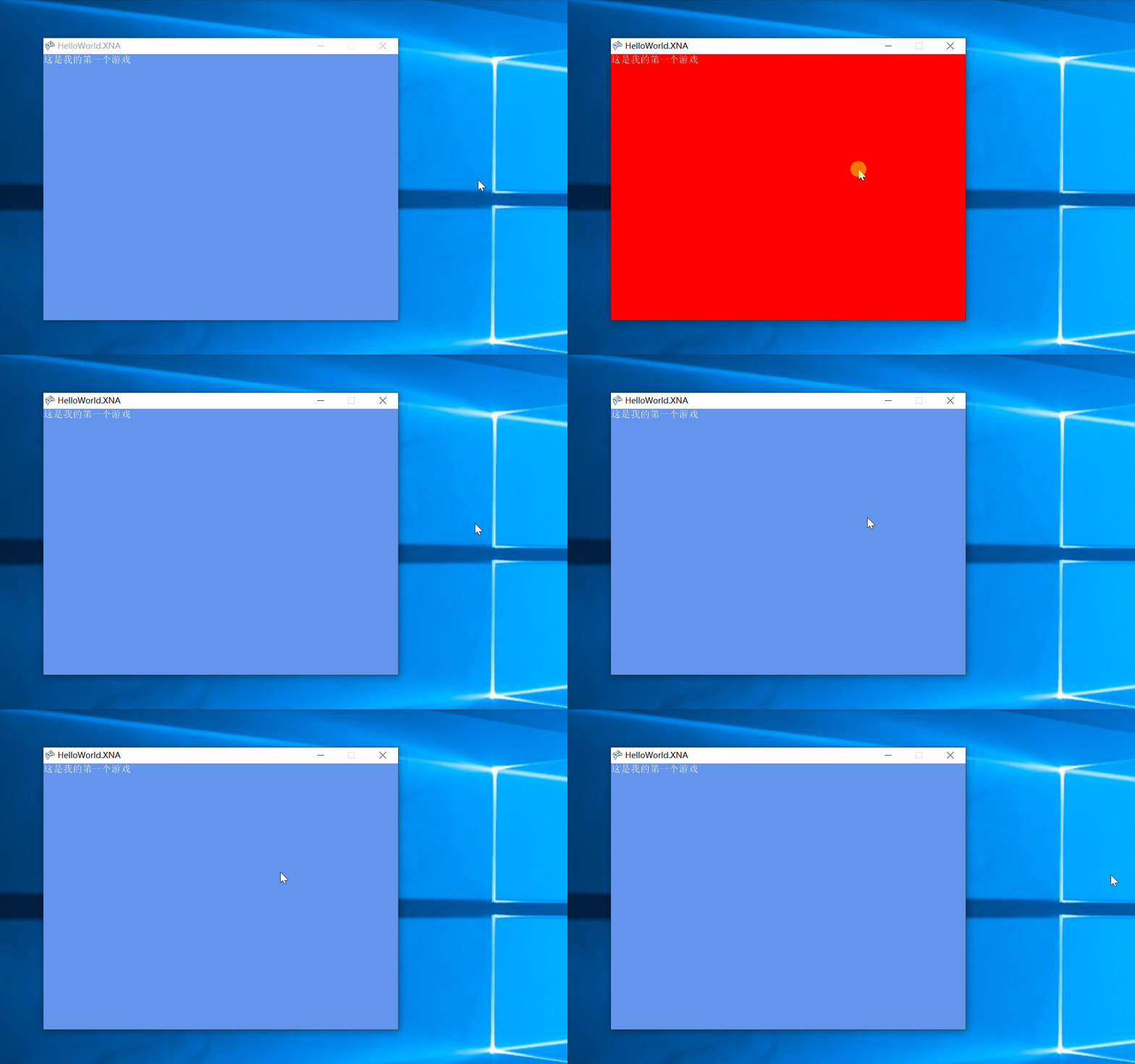
运行以后你会发现,这里有个小问题。鼠标无论点击在桌面的任何位置,游戏背景都会改变。这里涉及到鼠标点击范围的问题,将在以后的篇幅中进行详细介绍!
